NewScreenGo 1.0 for macOSSee it in action

Polished recordings,
fast.

ScreenGo records your screen, camera and voice, then does the polish for you: zooms, cursor, captions and clean sound.

Download on the Mac App Store

For Apple silicon Macs with macOS 26 or later. No account. Nothing leaves your Mac.
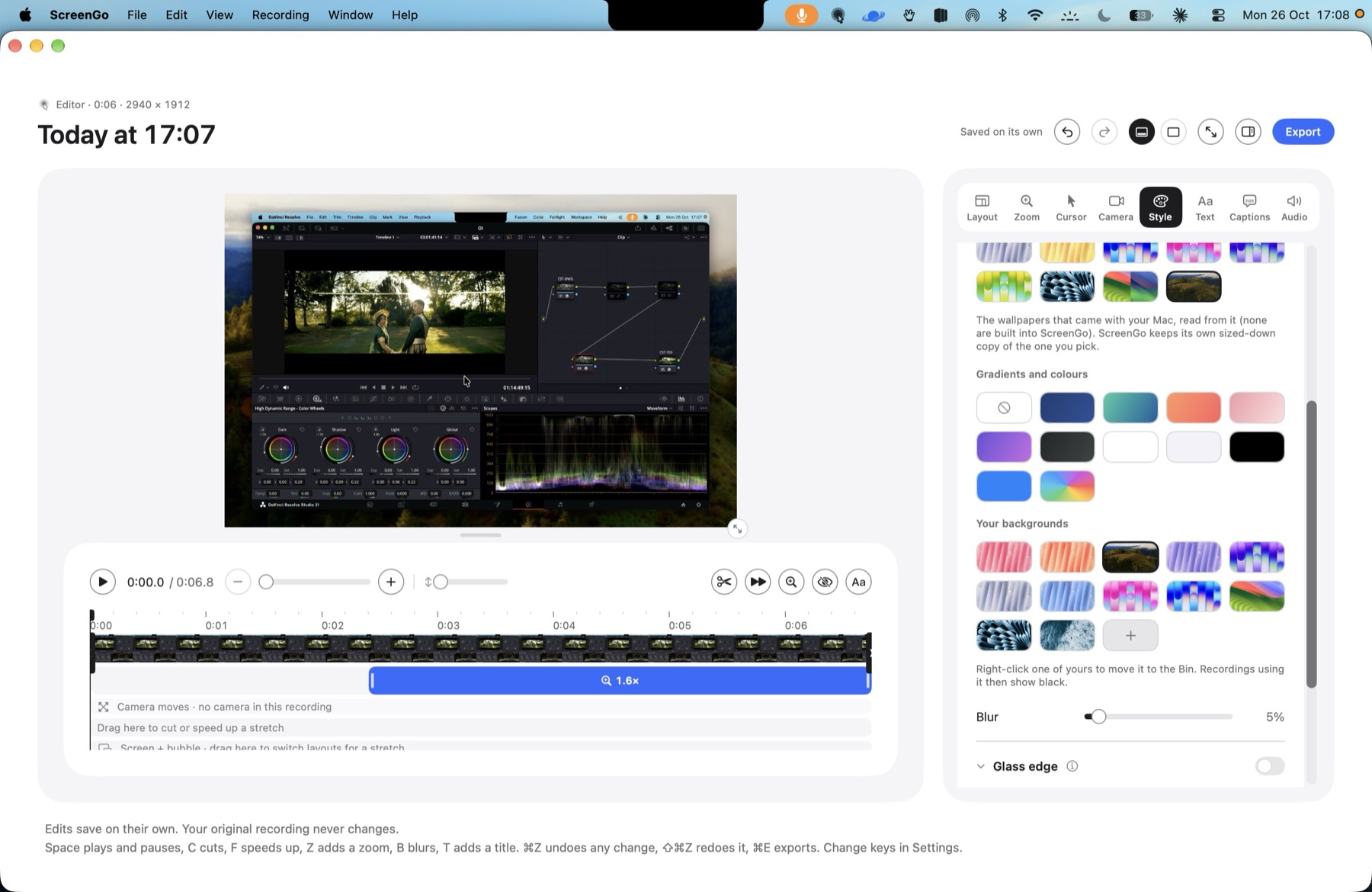
Raw screen recordings look flat. ScreenGo adds the zooms, the smooth cursor, the camera bubble and the clean voice for you.

How it works

Record. Edit. Share.

Three steps from your first take to a finished video.

  1. Step 1

    Record

    Press the shortcut or click Record in the menu bar. Screen, camera, voice and the computer's sound each land on their own track.

  2. Step 2

    Edit

    The zooms, the cursor and the camera bubble are already placed. Adjust a slider or two, add captions, blur anything private.

  3. Step 3

    Share

    Export MP4 up to 4K or a GIF, or copy the video straight to the clipboard and paste it into a message.

See it in action.

Seven short clips, each one made in ScreenGo.

01 / 07 · Shape

One recording, every platform.

Pick 16:9 for YouTube, 9:16 for Reels, TikTok and Shorts, 4:5 for Instagram and LinkedIn, or a square. The layout rearranges itself.

Why it helps: record once and post everywhere, with no re-recording or re-editing for each app.

02 / 07 · Backgrounds

A backdrop in one click.

Frame your recording on a wallpaper from your Mac, a gradient, a colour or your own image, with a slider to soften it.

Why it helps: your video looks designed rather than captured, and matches your brand.

03 / 07 · Cuts and speed-ups

Skip the boring bits.

Drag across the timeline to pick a stretch, then cut it or speed it up. Your original recording is never changed.

Why it helps: shorter videos that people actually watch to the end.

04 / 07 · Blur

Hide anything private.

Draw a blur or pixelate box over an email, a password or a customer's name, and choose how long it stays.

Why it helps: share recordings of real work without sharing real details.

05 / 07 · Voice tone

Sound better without a studio.

Choose Warm, Bright, Radio or Clear and watch the curve change. Apple's voice isolation takes out hum, hiss and keyboard noise.

Why it helps: a laptop or webcam mic sounds fuller and clearer, with no plug-ins.

06 / 07 · Voice level

The right volume, explained.

ScreenGo tells you when your voice is too quiet, and the boost that fixes it. Slide the gain until it says Good level.

Why it helps: no more viewers turning their volume all the way up.

07 / 07 · The editor

Room to see what you're doing.

Drag the divider to make the preview as big as you like, or give the timeline more room when you're cutting.

Why it helps: check small details at full size before you export, not after.

Edit

The polish is mostly done for you.

ScreenGo places the zooms, smooths the cursor and cleans up your voice. Change anything with a slider, or leave it as it is.

A real ScreenGo export, untouched

Recorded once. Polished automatically.

  • Camera above, screen below. The two-halves layout, set in one click.
  • Zooms in on the click. No keyframes, no timeline work.
  • A wallpaper backdrop. Rounded corners and a soft shadow.
  • Square for Instagram and LinkedIn. The same take exports in any shape.

Full undo

Every change can be undone. Your original recording is never touched.

A cursor that stays sharp

Drawn from the recorded mouse path, not the pixels, with smoothing and click effects, crisp at any zoom.

Clean voice

Tone presets, a level meter that tells you what to change, and Apple's voice isolation for hum and hiss.

Zooms that follow you

Automatic zooms track your clicks and typing, with easing you can adjust. Nearby zooms glide from one to the next.

A bubble that gets out of the way

Whenever the mouse heads its way, the camera bubble moves aside, or shrinks and fades.

Backgrounds, shapes, layouts

Frame the recording on your Mac wallpapers or your own image, in any shape from 16:9 to 9:16.

Looks for the camera

Built-in colour grades, or import your own .cube LUT. The camera file itself is never changed.

Captions, cuts, blur, text

Captions from your speech, cuts and speed-ups, blur boxes for private details, titles, labels and arrows.

What you see is what you export

One renderer draws the preview and the export, so there are no surprises after a long export.

Record

Everything you need, nothing in the way.

  • Start anywhere. The menu bar, a keyboard shortcut or the main window, with an optional countdown.
  • Any source. A display, a window or an area you draw.
  • Your camera in a bubble. The built-in camera, a webcam, an iPhone, or a Sony camera over USB.
  • A teleprompter that listens. It follows your voice and highlights each word as you say it.
  • Nothing lost. Pause and resume with every track in sync. A take that stops early is kept.
  • Up to 4K at 60 fps. 1080p, 1440p or 4K, at 30 or 60 frames a second.
ScreenGo Ready

Or press ⇧⌘R in any app.

Camera
Record
Microphone
Computer sound
TeleprompterFollows your voice as you read.

Have a go. It works just like the panel in your menu bar.

Built in

Two more things,
on the house.

A camera for every call, and a recorder that keeps everything on your Mac.

Webcam for other apps

Your look, in every video call.

Switch it on and ScreenGo appears as a camera in Zoom, Meet, FaceTime and Chrome, showing exactly what its camera preview shows, look included.

Private by design

Nothing leaves your Mac.

No account, no sign-in, no analytics, and no network code at all. Recordings stay in your Movies folder. Captions and the teleprompter use Apple's on-device speech recognition. Read the privacy policy

Who it's for

Made for people who show their work.

From a two-minute demo to a full course, every recording gets the same finish.

Product demos and tutorials

Walk through a feature once. The zooms follow every click, so nobody loses the cursor.

Pricing

One purchase.
That's it.

Every feature is included. Pay once and it’s yours.

Mac App Store

£34.99

One purchase for your Macs, with free updates to version 1.

Get ScreenGo

No subscription. No account. Nothing leaves your Mac.
Everything, from day one.

  • Recording up to 4K at 60 fps
  • Camera bubble and teleprompter
  • Zooms, cursor, layouts and looks
  • Captions, cuts, blur and text
  • Voice tone, level and noise removal
  • MP4 and GIF export
  • Webcam for other apps
  • Sony cameras over USB

FAQs

Questions,
answered.

Does it need an account or subscription?

No. One purchase on the Mac App Store, no sign-in, nothing to renew.

Is anything uploaded?

No. ScreenGo has no network code. Recordings and speech stay on your Mac.

What Macs does it run on?

Apple silicon (M1 or later) with macOS 26 or later.

Do I need a Sony camera?

No. The built-in camera, any webcam or an iPhone works. The Sony link is a bonus for people who have one.

What formats does it export?

MP4 up to 4K, and animated GIF.

Can I use it as my webcam in Zoom?

Yes. Switch on "Webcam for other apps" and pick ScreenGo Camera in any video app.

Can't find the answer? The support page has more, and a way to get in touch.